Chat UI
Bodhi App ships with a full-featured chat interface at /ui/chat/. This page is a tour of what's on screen, how messages flow, and where your conversations live.
If you came here to set up tools or tweak sampling, jump ahead:
- Tools and agents: Tool Calling in Chat
- Sampling and system prompt: Parameters and System Prompt
Layout at a glance
The chat UI uses a three-panel design:
- Chat History (left): previous conversations, grouped by recency.
- Main Chat (center): the active conversation and message input.
- Settings (right): model picker, sampling parameters, system prompt.
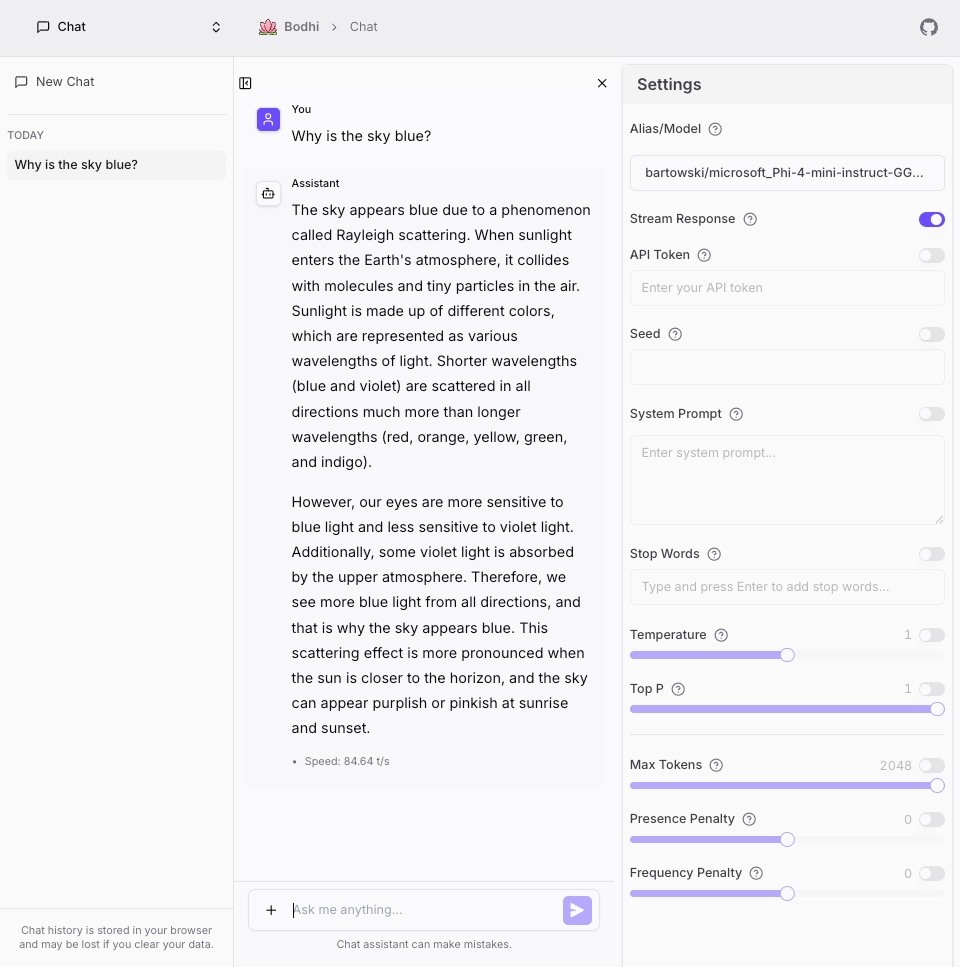
Both side panels are collapsible — click the chevrons to maximise the chat area. The open/closed state is remembered across reloads.
Picking a model
You must select a model before the send button activates. The dropdown in the Settings panel shows everything Bodhi can route to:
- Local model aliases — GGUF models served by llama.cpp on this machine
- API models — remote providers you've configured (OpenAI, Anthropic, Gemini, Groq, OpenRouter, ...)
The dropdown is searchable. Below the picker, a small API Format label shows which wire format Bodhi will use for the selected model (OpenAI, Anthropic, Gemini, etc.). Switching models mid-conversation starts a fresh context for the next message.
For deeper detail on model types, see Models → Overview.
Sending a message
Type in the input at the bottom of the main panel and press Enter (or click the send icon). While the assistant is responding:
- Tokens stream in token-by-token via Server-Sent Events.
- Markdown renders live — code blocks, tables, lists, and blockquotes all formatted as they arrive.
- Code blocks pick up syntax highlighting once the language is detected.
- A Stop button appears next to the input; click it to abort the in-flight response.
Each completed assistant message shows token counts and inference speed (e.g. Speed 25.3 t/s) below the bubble. For local GGUF models the speed reflects your hardware; for API models it's bounded by the provider's network.
Copying responses
Every assistant message has a copy button on hover. Each code block within a response also has its own copy button — useful for grabbing a snippet without the surrounding prose.
If something goes wrong
If the request fails before streaming starts, your input is restored to the text field so you can edit and retry. Errors surface as a toast at the bottom right. Common cases:
- Network connection failed — Bodhi server is unreachable or the connection dropped.
- Model unavailable — the local model is still loading, or the API provider is down.
- Rate limit exceeded — slow down or switch to a different provider.
If streaming was interrupted partway, the partial response is saved with an error marker so you don't lose what was generated.
Message types you'll see
A conversation in Bodhi can contain four kinds of message:
- User — what you typed.
- Assistant — the model's reply, with markdown and optional thinking block.
- Tool call / tool result — when the model invokes an MCP tool. Rendered as a collapsible card with status badge, arguments, and result. See Tool Calling for the full lifecycle.
- Thinking — for reasoning-capable models, the internal chain-of-thought is surfaced in a collapsible section inside the assistant bubble. Click to expand or collapse.
Conversation history
The left panel lists previous chats grouped by Today, Yesterday, and Previous 7 Days. Click any row to reopen that conversation; hover to reveal a delete control.
Conversations are stored locally in your browser using IndexedDB (via Dexie). This means:
- History survives reloads, browser restarts, and offline use.
- Conversations are scoped to your browser profile — they are never sent to the server beyond the messages required to generate each reply.
- Clearing site data, or switching browsers/devices, will lose the history. There is no cloud sync.
- Bodhi keeps the most recent 1000 chats per user; older ones are pruned automatically.
- Each chat record carries its own settings snapshot and enabled-tools selection, so reopening a conversation restores the exact configuration it was running under.
If you need to share a conversation across devices, copy the messages out manually — there is no built-in export today.
Starting a new chat
Two ways:
- Click the + button in the chat input area.
- Click the + New Chat entry at the top of the history panel.
A new chat clears the active context but keeps your selected model and settings. The chat record is created in the database the moment you send your first message.
Markdown and code rendering
Bodhi App renders responses with a Markdown pipeline that supports:
- Headings, bold/italic, lists, blockquotes, tables.
- Fenced code blocks with automatic language detection and syntax highlighting.
- Light and dark themes — code blocks adapt automatically.
- Inline code (
like this).
For best results, ask the model to wrap code in fenced blocks with a language tag (e.g. ```python).
Mobile and responsive behaviour
On smaller screens the side panels collapse into drawer overlays:
- Mobile: single-column chat, sidebars open on demand.
- Tablet: sidebars collapse to icons, expand on hover or tap.
- Desktop: both sidebars docked, all controls visible.
The collapse/expand state is persisted independently for each side.
Where things live
A quick map for power users:
| Concern | Location |
|---|---|
| Active conversation messages | IndexedDB (bodhi-chat database) |
| Per-conversation settings + enabled tools | IndexedDB (alongside the chat record) |
| Global default sampling settings | Browser localStorage |
| Sidebar open/closed state | Browser localStorage |
| Model catalog, MCP catalog | Bodhi server (synced via API) |
The chat UI never sends history to a third party. Only the messages required for the current request go to the model provider, exactly like a curl call to /v1/chat/completions would.
Related
- Tool Calling in Chat — how MCP tools surface and execute mid-conversation
- Parameters and System Prompt — sliders, stop sequences, system prompt overrides
- Models → Overview — local aliases vs. API models
- MCPs → Overview — what MCP servers are and how to add them
- Auth → Overview — roles required to use chat