User Management
The Users page is the manager / admin console for everything role- and access-related. From here you approve new users who have requested access, change existing users' roles, and remove users who should no longer have access. For the user-side perspective on requesting access, see User Access Requests.
Required role: Manager or Admin. PowerUser does not have access to user management.
URL: /ui/users/
What you can do here
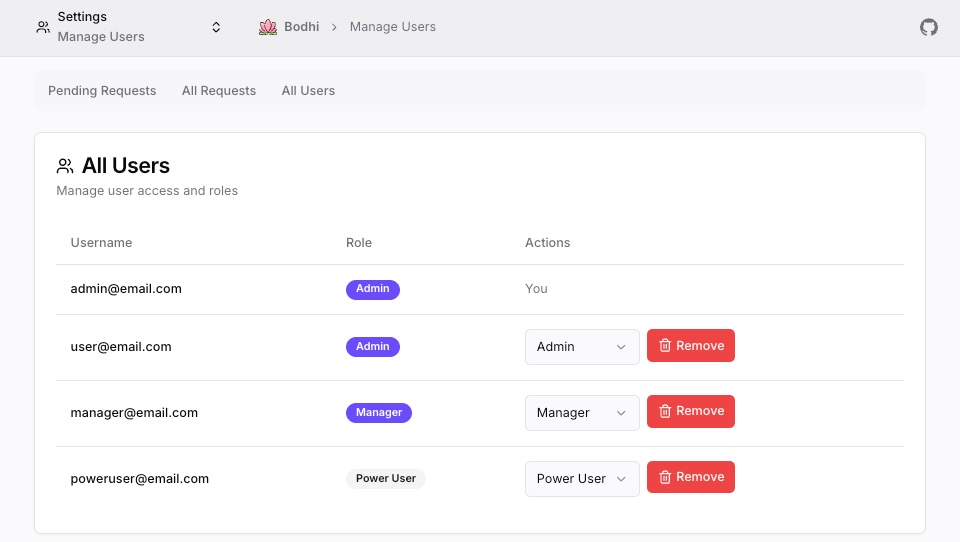
- Browse the list of registered users with their current role
- Approve or reject pending user access requests, choosing the role on approval
- Change a user's role (within the limits of your own role)
- Remove a user from the system
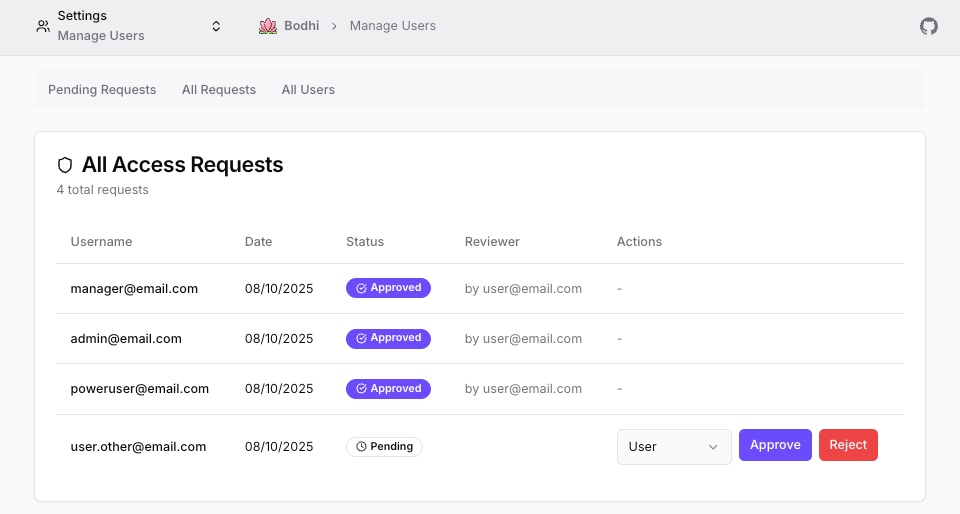
- Review the full audit history of access requests (pending, approved, rejected)
Tabs at a glance
The page has three tabs:
- Users — current registered users.
- Access Requests — pending user access requests waiting for review.
- All Requests — full audit log of user and app access requests across all states.
Roles, briefly
Bodhi uses four assignable roles in a strict hierarchy: User < PowerUser < Manager < Admin. Each role inherits everything below it. The full capability matrix is on Auth Overview; the short form here is enough for day-to-day decisions:
- User — chat + embeddings APIs, manage own MCPs and chats.
- PowerUser — adds: download/delete models, create user aliases, configure API models, mint API tokens, register external apps.
- Manager — adds: approve user access requests, change roles up to Manager, maintain the pre-registered MCP catalog.
- Admin — full system access including settings and Admin role management.
Approving user access requests
When a new user OAuth-logs in, they're routed to a Request Access screen. Once they click the button, their request shows up on the Access Requests tab here.
- Open Settings → Users → Access Requests (or
/ui/users/access-requests/). - Find the pending row for the user.
- Pick a role from the dropdown — the dropdown only shows roles you're allowed to grant (see below).
- Click Approve or Reject.
- If approved, the user's existing session is invalidated. They re-log in and land on Chat with the role you assigned.
The role is chosen at approval time — there is no auto-assignment. Most operators start new users with the User role and promote later.
Approval hierarchy
| Approver role | Can assign roles |
|---|---|
| Admin | User, PowerUser, Manager, Admin |
| Manager | User, PowerUser, Manager |
| PowerUser | (cannot approve) |
A Manager who opens a pending request will not see Admin in the role dropdown.
Rejection
Click Reject. The request moves to "Rejected" status, the user is not notified, and they can submit a new request immediately on next login (no cooldown, no attempt cap).
Changing a user's role
From the Users tab, click the role dropdown next to a user.
Restrictions:
- You cannot modify your own role.
- You cannot modify a user whose current role is higher than yours.
- You cannot assign a role higher than your own.
- The last remaining Admin in the system is protected from being demoted.
What happens after a role change:
- The new role takes effect immediately in the database.
- The user's active sessions are invalidated server-side.
- The user is logged out across all their browsers.
- On next login, they pick up the new role.
- No notification is sent — the change is silent on the user's side.
Removing a user
Click the remove icon in the Actions column on the Users tab and confirm.
What's preserved: chat history, API tokens, downloaded model files, and aliases the user created. Removal is a soft delete — the user can later submit a fresh access request with the same email and be re-approved.
What's revoked: the user's account, all active sessions, and effectively the ability of any of their tokens to authenticate (token validation requires an active user).
You cannot:
- Delete your own account.
- Delete the last remaining Admin.
All Requests tab
The All Requests tab is a unified audit view covering both user access requests and app access requests. Columns:
| Column | Notes |
|---|---|
| Username | Who the request belongs to |
| Date | Submission date for pending; last-update date for processed |
| Status | Pending, Approved, or Rejected |
| Reviewer | Username of the approver/rejector (blank for pending) |
| Actions | Role dropdown + Approve / Reject for pending; empty for processed |
You can act on a pending request from this view directly. App access requests show alongside user access requests; for the dedicated app-access flow see App Access Management.
Operating tips
- Least privilege. Start new users at User. Promote to PowerUser when they need to manage models, mint tokens, or register apps. Use Manager for trusted operators only.
- Audit periodically. The All Requests tab is permanent — useful for reviewing who approved which requests after the fact.
- Sessions invalidate on changes. Any role change or removal forces re-login. Tell affected users so they don't think the app is broken.
Troubleshooting
"Cannot modify users with higher role"
You can only act on users at or below your own role. Ask an Admin to handle the action.
Role dropdown is empty or disabled
You're trying to act on yourself, on a user with a higher role, or on the last Admin. None of those are permitted.
Approved user still sees the Request Access screen
Their old session was invalidated server-side, but their browser hasn't realized yet. Have them log out fully and log back in.
Submitted request not visible
Refresh the page. If it still doesn't appear, check that the user actually clicked the Request Access button (not just the OAuth login). The button submits the row.
See also
- Auth Overview — role × capability matrix
- User Access Requests — the user-facing onboarding flow
- App Access Management — third-party app access requests
- API Tokens — programmatic credentials