User Access Requests
Overview
After authenticating with OAuth2, new users must request access from an administrator or manager before they can use Bodhi App. This page describes the user onboarding flow from the new user's perspective.
Key Points:
- OAuth2 authentication required first
- Self-service request submission (single button, no forms to fill)
- Admin or manager approval required before any access is granted
- Request status tracked as Pending, Approved, or Rejected
- Completely separate from app access management, which handles third-party application permissions
First User Exception: The very first user to log in via OAuth automatically becomes Admin. No access request is needed. This is determined by checking whether any users exist in the database during OAuth login.
Access Request Workflow
Step 1: Log In with OAuth
- Navigate to Bodhi App (e.g.,
http://localhost:1135) - Click "Login"
- You are redirected to the configured OAuth provider (OAuth2 PKCE flow)
- Authenticate with your credentials
- Return to Bodhi App
On first login, you are automatically redirected to the Request Access page at /ui/request-access/.
Step 2: Submit Access Request
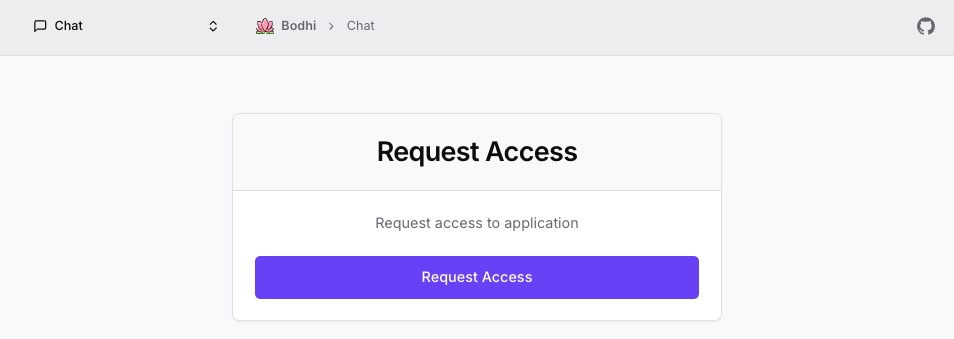
The Request Access page displays your user information (email/username from OAuth) and a single "Request Access" button. There is no message field or additional form input.
- Review the information on the page
- Click Request Access
- Your request is saved to the database with Pending status
Admins and managers are not automatically notified. They must check the pending requests page themselves.
Step 3: Wait for Approval
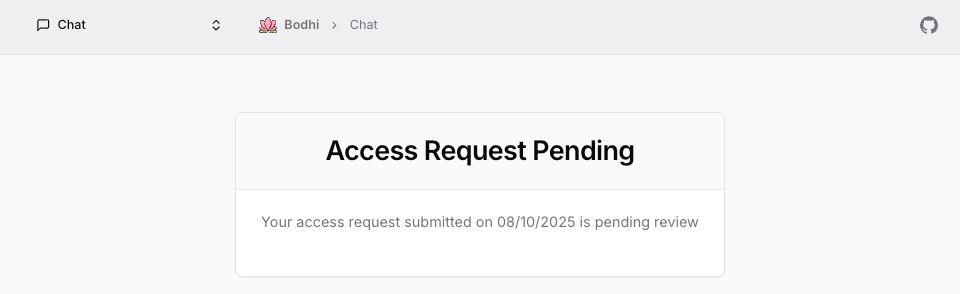
After submitting, you see an "Access Request Pending" screen showing:
- Your request status
- The submission date (MM/DD/YYYY format)
- A message that your request is under review
While waiting:
- You cannot access any Bodhi App features (chat, models, settings, etc.)
- Navigating to any protected page redirects you back to the Request Access page
- You can log out and log back in to check status
- The request cannot be cancelled once submitted
- The pending state persists across page reloads
Step 4: Approval or Rejection
An admin or manager reviews your request from the User Management page.
If Approved:
- The approver selects a role for you (User, PowerUser, Manager, or Admin)
- Your active session is invalidated (you are logged out automatically)
- Log in again via OAuth
- You are redirected to the Chat page with your assigned role
- You now have full access based on your role
If Rejected:
- Your pending request is removed
- On next login, the system finds no pending request and shows the Request Access page again
- You can submit a new request immediately (no cooldown period, no attempt limit)
Approval Hierarchy
The approver's own role determines which roles they can assign:
| Approver Role | Can Assign |
|---|---|
| Admin | User, PowerUser, Manager, Admin |
| Manager | User, PowerUser, Manager |
| PowerUser | Cannot approve user access requests |
For example, a Manager cannot assign the Admin role. If a Manager views a pending request, the Admin role option does not appear in the role dropdown.
Request Status Types
| Status | Meaning | What to Do |
|---|---|---|
| Pending | Under review | Wait for admin/manager decision |
| Approved | Access granted | Log out and log back in to use Bodhi App |
| Rejected | Access denied | Request Access page shown again; re-request any time |
Frequently Asked Questions
How long does approval take?
Approval time depends on administrator availability. There is no SLA or estimated time displayed. The admin must manually check the pending requests page.
Can I request access again if rejected?
Yes. When your request is rejected, the Request Access page appears again with no indication of the previous rejection. You can click "Request Access" immediately to submit a new request.
Can I cancel my request?
No. Once submitted, the request stays in the admin queue as Pending until reviewed. There is no cancel button.
What role do I get when approved?
The approver selects your role during approval. See the Approval Hierarchy section for which roles each approver can assign. Administrators can modify your role later from the Users page.
Can I use Bodhi App while waiting?
No. All protected pages redirect to the Request Access page until your request is approved and you re-authenticate.
Why was my session invalidated after approval?
When your request is approved, the server invalidates your existing session so that your next login picks up the newly assigned role. You must log in again via OAuth to receive the updated session with your role.
Troubleshooting
Request Button Disabled
Possible Causes:
- The button is disabled while the request is being submitted (in-flight state)
- You already have a pending request (duplicate prevention at the database level)
- Network error during submission
Solutions:
- Wait a moment for the submission to complete
- Refresh the page if the button remains disabled
- Check whether you already see the "pending" status message
Still See Request Access Page After Approval
Cause: Your old session is still active (it was invalidated server-side on approval).
Solution:
- Log out completely
- Clear browser cache if necessary
- Log in again -- you should be redirected to the Chat page
No Pending Request Found After Submission
If you submitted a request but the page shows the request form again (not the pending status), your request may have been rejected. Submit a new request.
Related Documentation
- User Management (Admin Guide) -- Admin perspective on reviewing requests
- App Access Management -- Separate feature for third-party app permissions