User Access Requests
After OAuth-logging in for the first time, new users land on a Request Access page rather than directly on the Chat UI. This page covers that flow from the user's perspective. For the operator side — approving, rejecting, picking a role — see User Management.
User access requests are entirely separate from App Access Management, which handles consent for third-party apps wanting to use your MCPs and APIs.
First user is automatically Admin
If you're the very first person to OAuth-log into a fresh Bodhi instance, you skip the Request Access flow entirely. You land on Chat as Admin and can immediately start approving subsequent requests. This is determined server-side by checking whether any users exist in the database when OAuth completes.
The flow, step by step
1. Log in with OAuth
- Open Bodhi (e.g.
http://localhost:1135). - Click Login.
- You're redirected to the configured OAuth provider (PKCE flow).
- Authenticate with your existing credentials.
- Bodhi receives the authorization code, validates the JWT, and creates a session.
On first login, you're automatically routed to /ui/request-access/.
2. Submit the request
The Request Access page shows your email/username from OAuth and a single Request Access button. There's no message field — the request is just "this user wants in."
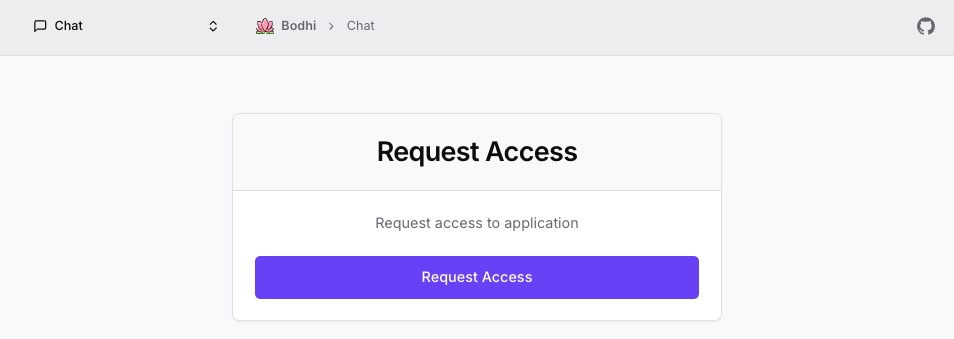
Click Request Access. A row is inserted into the requests table with status Pending. Admins and managers are not notified — they have to look at their queue.
3. Wait
The page transitions to an "Access Request Pending" view that shows your status and the submission date.
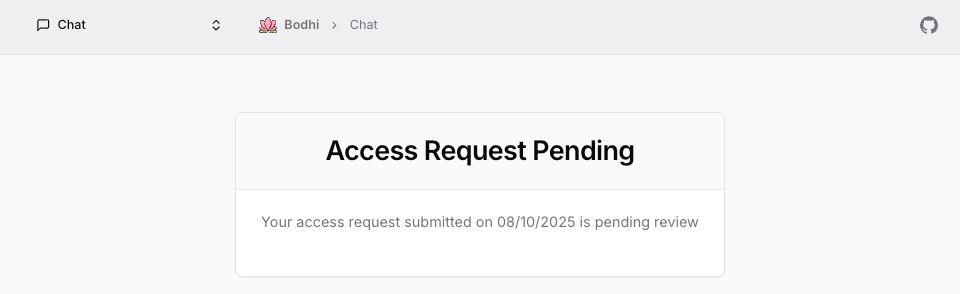
While pending:
- All protected pages redirect you back to this screen.
- You can log out and log back in; the pending state persists.
- You cannot cancel the request — it stays in the queue until reviewed.
- No estimated approval time is shown. It depends entirely on operator availability.
4. Approval or rejection
A Manager or Admin reviews your request from the Users page and clicks Approve or Reject. The reviewer also picks the role you'll receive on approval.
If approved:
- Your active session is invalidated server-side.
- You're effectively logged out.
- Log in again via OAuth.
- You land on Chat with your assigned role.
If rejected:
- Your row is marked Rejected.
- On next login, the system shows the Request Access page again with no indication of the previous rejection.
- You can submit a new request immediately.
What role will I get?
The reviewer picks. Their own role bounds what they can hand out:
| Reviewer role | Roles they can assign you |
|---|---|
| Admin | User, PowerUser, Manager, Admin |
| Manager | User, PowerUser, Manager |
| PowerUser | (cannot review user access requests) |
So a Manager-led team will never auto-promote you to Admin — that requires an existing Admin to act.
The reviewer can also change your role later from the Users page if your responsibilities shift. See the role capability matrix on Auth Overview.
Status values
| Status | What it means | What to do |
|---|---|---|
| Pending | Under review | Wait. Check back periodically. No notification is sent. |
| Approved | Access granted | Log out and log back in to pick up the new role. |
| Rejected | Access denied | Submit a new request from the Request Access page if needed. |
FAQ
How long does approval take?
Depends on operator availability — there's no SLA. Reviewers must manually check the pending queue.
Can I get notified when I'm approved?
Not built-in. You'll know because your old session is invalidated and the Request Access screen shows again on next login — at which point logging in routes you to Chat instead.
Can I cancel my request?
No. Once submitted, the row stays as Pending until a Manager or Admin reviews it.
Can I re-request after rejection?
Yes, immediately. There's no cooldown and no attempt limit. The system doesn't tell the reviewer "this user was rejected before."
Why was my session invalidated when I was approved?
So your next login picks up the newly assigned role. Sessions cache the role at login time; invalidating them forces a fresh OAuth round-trip with up-to-date role information.
Troubleshooting
Request button does nothing or stays disabled
It briefly disables while the submission is in flight. If it stays disabled:
- Refresh the page — you may already have a pending request (one per user is enforced).
- Check the network tab for an error response.
Still on Request Access after I was told I'm approved
Your old session is still active in the browser. Log out fully (clear cookies if needed) and log back in via OAuth.
Submitted but the page shows the request form again
Most likely your request was rejected, not approved. There's no rejection notice — the page just resets to "request access." Click the button to submit a new one.
See also
- Auth Overview — role × capability matrix and token model
- User Management — the operator side of this flow
- App Access Management — the unrelated third-party app consent flow