Models
The Models page (/ui/models/) is the central hub for managing all models available in Bodhi App. It displays three types of models in a unified table:
- User Defined Model Aliases — Custom YAML configurations with tailored request and context parameters. Source badge: user.
- GGUF Model File Defined Aliases — Direct references to downloaded GGUF model files that use embedded metadata for automatic configuration. Source badge: model.
- API Models — Cloud-based models from providers like OpenAI, OpenRouter, and HuggingFace. Source badge: API. See API Models for configuration details.
GGUF Model Metadata
For local GGUF models, Bodhi App can extract capabilities directly from the GGUF file headers. A preview modal shows metadata including:
- Capabilities: vision, audio, thinking support, function calling, structured output
- Context Limits: max input tokens, max output tokens
- Architecture: format, family, parameter count, quantization level
You can refresh metadata for any model from the preview modal or per-row refresh button on the Models page.
User Defined Model Alias
A User Defined Model Alias is essentially a YAML configuration file that contains default request parameters as well as server (context) parameters. This approach makes it easy to reuse and switch between specific model setups without having to reconfigure complex settings each time.
Sample Model Alias YAML File
All User Defined Model Aliases can be found in the $BODHI_HOME/aliases folder. A sample model alias file is shown below:
alias: llama3:instruct
repo: QuantFactory/Meta-Llama-3-8B-Instruct-GGUF
filename: Meta-Llama-3-8B-Instruct.Q8_0.gguf
snapshot: 5007652f7a641fe7170e0bad4f63839419bd9213
context_params:
  - '--ctx-size 2048'
  - '--threads 4'
  - '--parallel 1'
  - '--n-predict 4096'
  - '--n-keep 24'
request_params:
  temperature: 0.7
  frequency_penalty: 0.8
  stop:
    - <|start_header_id|>
    - <|end_header_id|>
    - <|eot_id|>
A Model Alias YAML file includes the following keys:
-
alias: (required) A unique name for your model configuration. This is used to reference the model in chat settings and API calls.
-
repo: (required) The source repository (typically from HuggingFace).
-
filename: (required) The specific GGUF model file used.
-
snapshot: (optional) Controls which version/snapshot of a model to use. Leave blank for the latest version, or specify a commit hash for a specific snapshot. This allows you to pin to a specific model version for reproducibility.
-
context_params: (optional) Array of llama-server command-line arguments for inference configuration. Each argument should be a complete flag with its value.
- Common arguments:
--ctx-size <n>: Maximum context size in tokens (e.g.,--ctx-size 2048)--threads <n>: Number of CPU threads to use (e.g.,--threads 4)--parallel <n>: Number of parallel requests (e.g.,--parallel 1)--n-predict <n>: Maximum tokens to generate (e.g.,--n-predict 4096)--n-keep <n>: Tokens to keep from initial prompt (e.g.,--n-keep 24)
Advanced Configuration: For complete list of available llama-server arguments, see llama.cpp server documentation. Additional server parameters can also be configured through the Settings dashboard - see App Settings page.
- Common arguments:
-
request_params: Default request parameters applied if not specified during a request:
- frequency_penalty: Reduces repetition.
- max_tokens: Limits the length of responses.
- presence_penalty: Encourages topic diversity.
- seed: Ensures reproducible outputs.
- stop: Up to four sequences that, when encountered, halt the response.
- temperature: Adjusts the randomness of responses.
- top_p: Sets the token probability threshold.
GGUF Model File Defined Alias
A GGUF Model File Defined Alias leverages complete metadata embedded in the GGUF file. In this case, all the default request and context parameters are used, and you cannot override them. This method is the quickest, most direct way to run a model within the app.
The model alias ID for this type is typically a combination of the model repository and the quantization detail. For example, for a repo QuantFactory/Meta-Llama-3-8B-Instruct-GGUF and filename Meta-Llama-3-8B-Instruct.Q8_0.gguf, the model alias ID would be:
QuantFactory/Meta-Llama-3-8B-Instruct-GGUF:Q8_0
How Model Aliases Work
For a User Defined Model Alias, when you reference the alias ID in your chat settings or API calls (using the model parameter), Bodhi App will:
- Launch the LLM inference server (if not already running) with the
context_paramscommand-line arguments. - Apply the
request_paramsas the default settings on the request. - Forward the request to the inference server.
- Stream back the response received from the inference server.
Similarly, for a GGUF Model File Defined Alias, the process is:
- Launch the LLM inference server, if not already running, with default server settings.
- Forward the request to the inference server.
- Stream back the response.
This approach offers several advantages:
- Simplicity: Manage complex configuration details with a single, easy-to-reference alias.
- Speed: Quickly start running inferences against a downloaded GGUF file without additional configuration.
- Consistency: Ensure that the same parameters are applied across multiple chat sessions or API interactions.
- Flexibility: Easily update your configurations via the UI or API, with the server restarting to apply new settings.
Models Page
The Models page provides a unified view of all available models in Bodhi App, displaying all model types in a single sortable, paginated table.
Table Columns:
- Name: Model alias or API model ID
- API Format/Repo: API format (for API models) or HuggingFace repository (for local models)
- File/Endpoint: Base URL (for API models) or GGUF filename (for local models)
- Type: Source badge — "user" (user-created alias), "model" (GGUF file alias), or "API" (cloud provider)
- Prefix: Prefix configured for API models (if any)
- Forward All: Whether an API model forwards all provider models via prefix routing
Page Actions:
- New Model Alias button — navigate to
/ui/models/alias/newto create a local model alias - New API Model button — navigate to
/ui/models/api/newto configure a cloud provider - Edit — edit user-defined aliases (
/ui/models/alias/edit) or API models (/ui/models/api/edit) - Chat — start a chat session with any model
- Preview — open a modal showing model details, capabilities, and metadata
- Refresh — refresh GGUF metadata from file headers
- New from Model — create a new alias from an existing GGUF model file (pre-fills repo/filename)
- External Link — open HuggingFace repository or provider URL
- Copy configuration details with hover-to-copy on column values
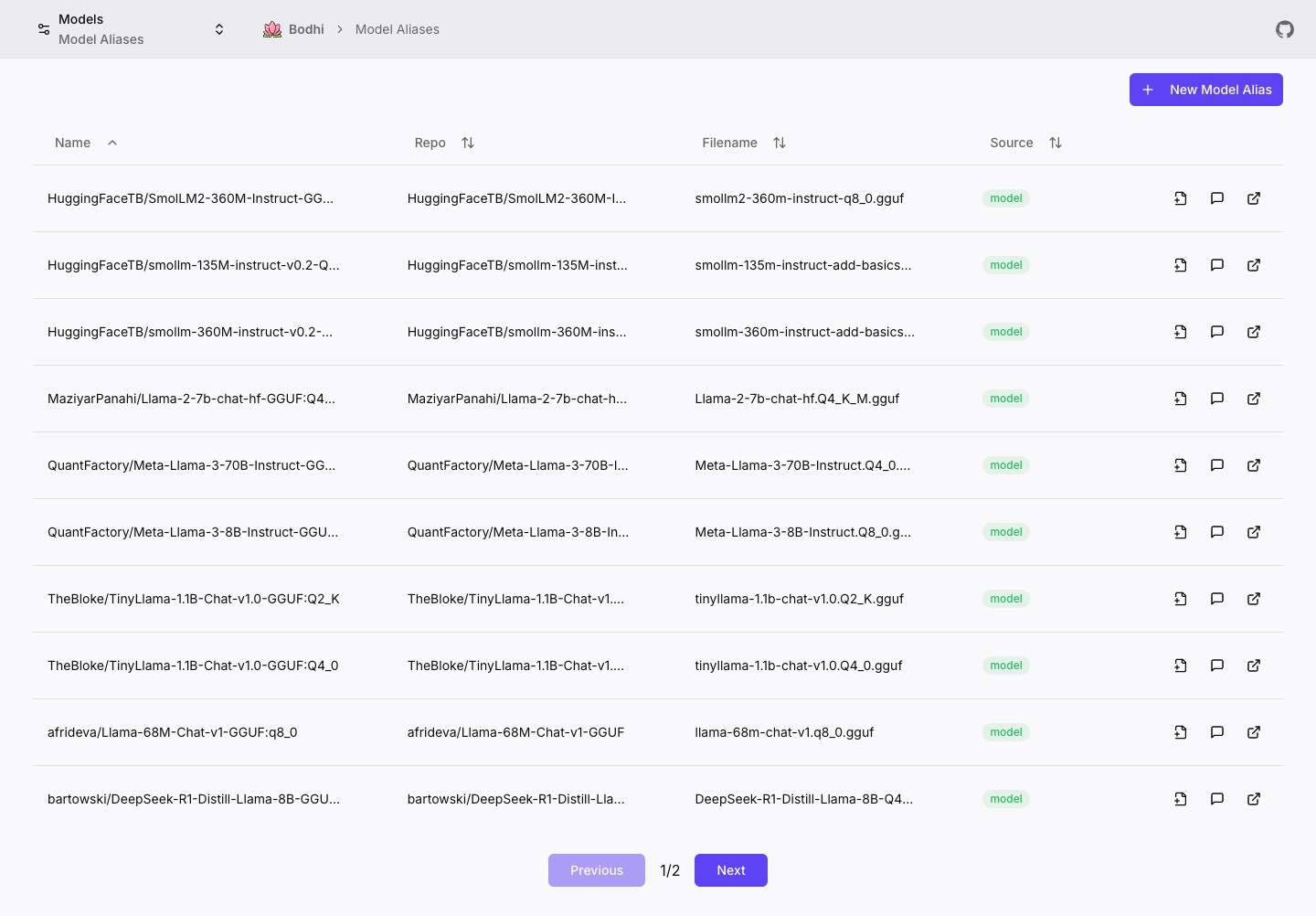
Model Alias Form
Create a new alias at /ui/models/alias/new, or edit an existing one at /ui/models/alias/edit. Both forms are also accessible from the Models page action buttons.
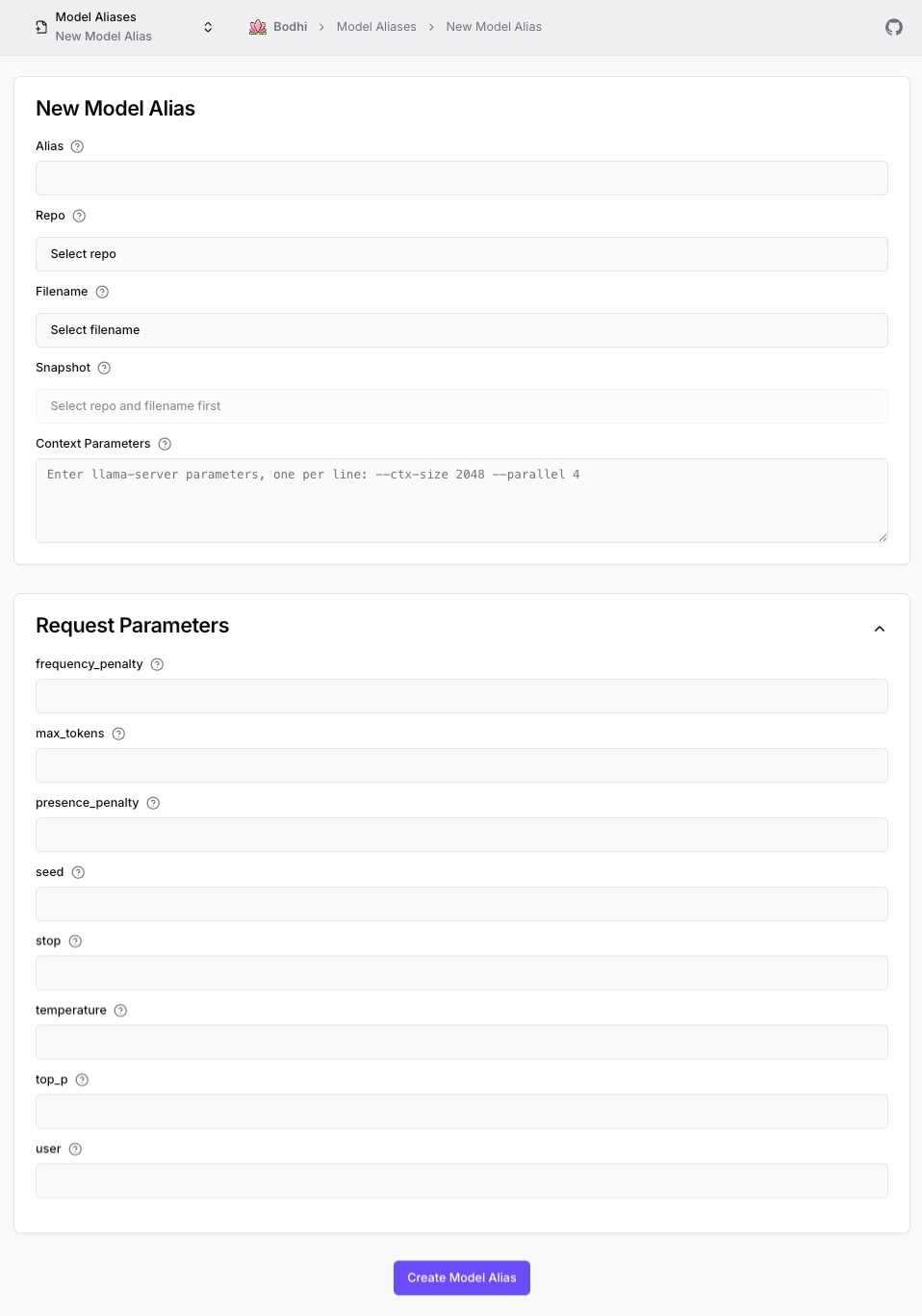
Key Form Fields:
- Alias: Unique identifier for your model configuration
- Repo/Filename/Snapshot: Model source from HuggingFace
- Context Parameters: llama-server CLI arguments (one per line in format
--flag value) - Request Parameters: Default inference parameters (collapsible section)
Best Practices and Reference Configurations
Bodhi App's Model Alias system is designed to simplify advanced model configuration. By leveraging aliases, you can ensure that each chat session uses a clear, consistent setup tailored to your requirements.
Performance Considerations
When configuring model aliases, consider these key performance factors:
Memory Usage vs Thread Count
- Higher thread counts (
n_threads) can improve inference speed - But each thread requires additional memory
- Recommended: Start with
n_threads= number of CPU cores / 2
Context Size Impact
- Larger context sizes (
n_ctx) allow for longer conversations - But increase memory usage and initial load time
- Recommended: Start with 2048 tokens and adjust based on needs
Quantization Effects
- Lower bit models (Q4_K_M) use less memory but may reduce quality
- Higher bit models (Q8_0) provide better quality but use more memory
- Recommended: Test different quantization levels for your use case
Optimization Tips
- Set
n_parallelbased on your expected concurrent usage - Use
n_keepto maintain important context while reducing memory usage - Consider using
stopsequences to prevent unnecessary token generation