MCP Playground
The Playground at /ui/mcps/playground/ is a manual tool runner. Pick a tool, fill in the inputs, hit Execute, see the JSON response. Use it to debug an integration, sanity-check a tool's input schema, or confirm a server is reachable before you let a model start calling it.
Open it from the My MCPs list — click the play button on any instance row. The playground inherits that instance's connection (same auth, same whitelist).
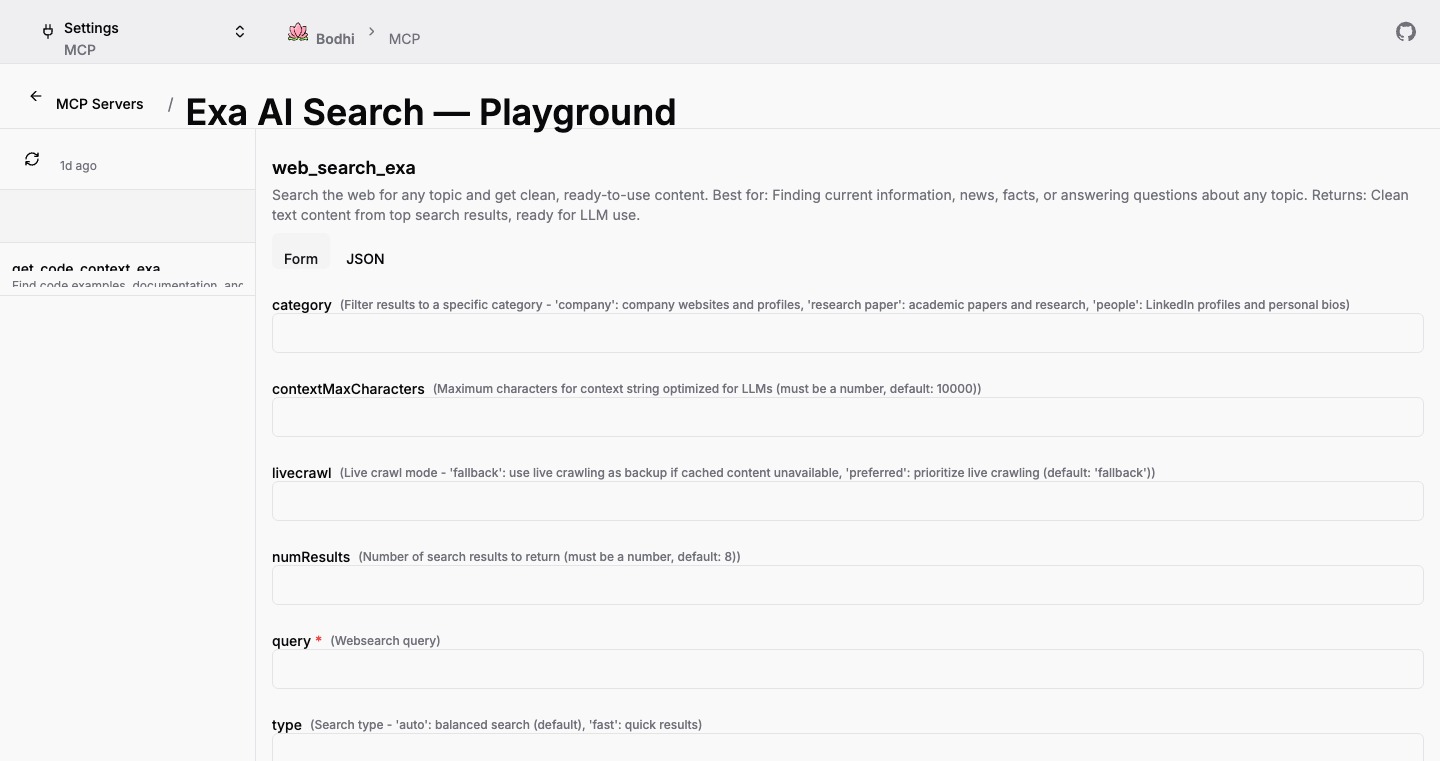
Layout
The page is a two-panel split.
Tool sidebar (left)
The sidebar lists every tool the connected MCP server advertises. Each row shows the tool name and description. A connection-status indicator (connected, connecting, error, …) sits at the top, alongside a refresh icon that re-queries the server for its current tool list.
Tools that are not on the instance's whitelist still appear here, but selecting one shows a warning that execution may be rejected.
Execution area (right)
When a tool is selected, the right panel shows:
- The tool's name and description.
- Form / JSON toggle for input mode.
- Parameter inputs (auto-generated from the tool's JSON Schema in form mode, or a single textarea in JSON mode).
- An Execute button.
- A result panel that appears after the first run.
Filling in parameters
Form mode
Form mode renders inputs from the tool's inputSchema:
- String → text input.
- Number / integer → number input.
- Boolean → checkbox.
- Array / object → textarea, expecting JSON.
- Required parameters get a red asterisk.
- Field descriptions from the schema appear as helper text.
JSON mode
A single textarea where you write the full parameter object as JSON. Syntax errors show an "Invalid JSON" hint below the editor. Valid JSON edits flow back into form fields when you toggle, so you can mix the two modes during a debugging session.
Executing a tool
Click Execute. Bodhi:
- Strips empty strings and undefined values from the parameters.
- Sends the call through the playground's MCP client connection (the same path Bodhi uses for chat tool calls).
- Streams the response into the result panel.
A spinner sits on the button while the call is in flight.
Reading the result
The result panel has a status badge and three tabs.
- Status badge — green Success or red Error based on whether the response carries a result or an error.
- Response — the result payload, syntax-highlighted JSON. Errors render as red monospace text.
- Raw JSON — the complete response object, including metadata.
- Request — the JSON that was sent (tool name plus parameters), useful for filing a bug or copying into a script.
A Copy button in the panel header copies the active tab's content to the clipboard.
Refreshing tools
Click the refresh icon in the sidebar header to re-query the server. This is the right move when:
- The server has shipped a new tool you want to try.
- A tool's input schema changed under you.
- You just edited the instance's whitelist and want to see the updated set.
Whitelisted-vs-not status follows from the instance, so changes there are reflected immediately without a refresh.
Disabled instance behavior
If you disable the instance (via the edit page) or the underlying server is disabled by an admin, the playground still loads the cached tool list — but Execute returns an error. Re-enable the instance to run again.
When to use the playground vs chat
Use the playground when you want to:
- Confirm a server is reachable and the tool list looks right.
- Try a tool with carefully-crafted inputs before letting a model run wild.
- Debug a tool that misbehaves in chat — the JSON tabs make it obvious whether the issue is in the request or the response.
Use chat when you want to:
- Let the model decide which tools to call and when.
- Chain tool calls together in a single multi-turn conversation.
- See tool calls inline alongside the model's reasoning.
For chat-side tool execution, see Tool Calling in Chat.
Where to next
- Setup — create or edit the instance you are testing.
- Auth Methods — debug 401/403 responses by checking the connection method.
- Usage in Chat — once a tool works in the playground, enable it in chat.