MCP Usage
Once MCP servers and instances are configured (see MCP Setup), you can test tools in the Playground and use them in chat conversations through the agentic loop.
MCP Playground
The Playground at /ui/mcps/playground?id=<mcpId> provides an interactive environment for testing individual MCP tools. Access it by clicking the play button on any MCP instance in the list.
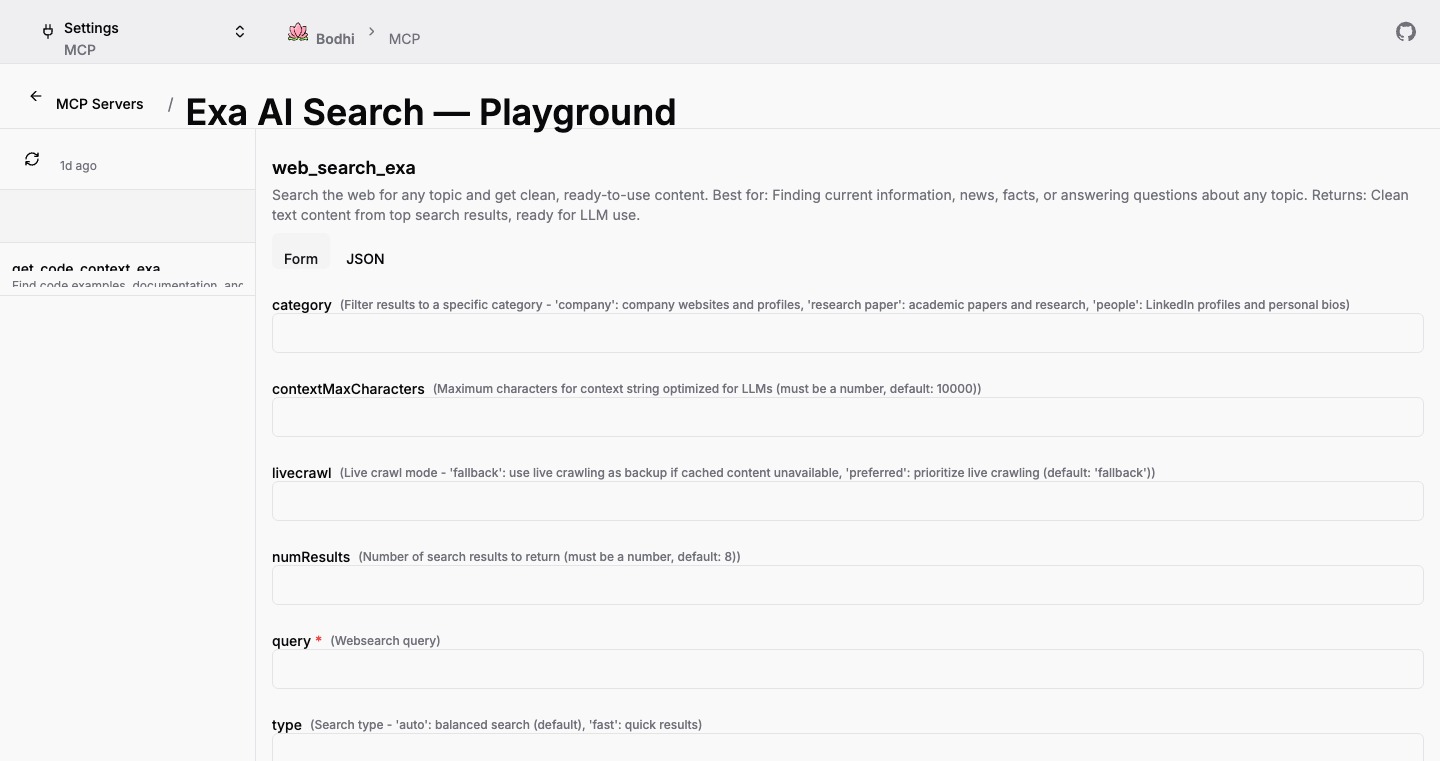
Layout
The Playground uses a two-panel layout:
-
Tool Sidebar (left) -- Lists all tools from the MCP instance's cached tool inventory. Each tool shows its name and description. Non-whitelisted tools appear dimmed (at 50% opacity). A refresh button re-fetches tools from the server, and a timestamp shows when tools were last updated.
-
Execution Area (right) -- Displays the selected tool's details, parameter inputs, execute button, and results.
Selecting a Tool
Click any tool in the sidebar to select it. The execution area updates to show:
- The tool name and description.
- A warning alert if the tool is not whitelisted in the instance's tool filter. The warning reads: "This tool is not whitelisted. Execution may be rejected by the server."
- Parameter input fields generated from the tool's JSON Schema.
Entering Parameters
Two input modes are available, toggled via Form and JSON buttons above the parameter area:
Form Mode -- Renders schema-driven form fields based on the tool's input_schema:
- String parameters render as text inputs.
- Number/Integer parameters render as number inputs.
- Boolean parameters render as checkboxes.
- Array/Object parameters render as textarea fields expecting JSON.
- Required fields are marked with a red asterisk.
- Field descriptions from the schema appear as helper text.
JSON Mode -- A raw JSON textarea for entering all parameters as a JSON object. Syntax errors display an "Invalid JSON" message below the editor.
The two modes stay synchronized. Editing a value in form mode updates the JSON representation, and valid JSON edits update the form fields when switching back. This bidirectional sync is maintained in real time.
Executing a Tool
Click Execute to send the tool call to the MCP server. The request is sent to POST /bodhi/v1/apps/mcps/<mcpId>/tools/<toolName>/execute with the cleaned parameters (empty strings and undefined values are stripped).
During execution, a spinner appears on the button. When execution completes, the result section appears below.
Viewing Results
Results display in a panel with a status badge and three tabs:
-
Status Badge -- Shows either a green Success badge or a red Error badge based on whether the response contains a
resultfield or anerrorfield. -
Response Tab -- Shows the result payload as syntax-highlighted JSON. For error responses, the error message displays in red monospace text.
-
Raw JSON Tab -- Shows the complete response object including both result and metadata.
-
Request Tab -- Shows the JSON that was sent: the tool name and parameters object.
A Copy button in the header copies the currently displayed tab content to the clipboard.
Refreshing Tools
Click the refresh icon in the sidebar header to re-fetch tools from the MCP server. This calls POST /bodhi/v1/apps/mcps/<mcpId>/tools/refresh and updates the cached tool list. The last-refreshed timestamp updates to reflect the new fetch time.
Disabled Instance Behavior
If an MCP instance is disabled (via the enabled toggle on the edit page), tool execution in the Playground returns an error response. The tools remain visible and selectable, but the server rejects execution requests.
Chat Integration
MCP tools integrate directly into the chat interface, enabling an agentic workflow where the LLM can request tool calls that Bodhi executes and feeds back into the conversation.
MCPs Popover
The chat input area includes a plug icon button that opens the MCPs popover. This popover lists all of the user's MCP instances with per-MCP and per-tool enable/disable controls.
Badge Count -- When tools are enabled, a badge on the plug icon shows the total number of enabled tools across all MCPs.
MCP Rows -- Each MCP instance appears as a row with:
- An expand/collapse chevron to reveal individual tools.
- A checkbox to enable or disable all of the MCP's visible tools at once. The checkbox shows three states: checked (all tools enabled), unchecked (no tools enabled), or indeterminate (some tools enabled).
- The MCP slug and a tool count indicator (e.g., "3/5").
Tool Rows -- Expanding an MCP reveals its whitelisted tools, each with an individual checkbox to enable or disable that specific tool.
Unavailability Handling -- MCPs that are not available for use appear dimmed with disabled controls. Hovering over an unavailable MCP shows a tooltip explaining the reason:
- "Disabled by administrator" -- The parent MCP server is disabled.
- "Disabled by user" -- The MCP instance itself is disabled.
- "Tools not yet discovered" -- The tools cache is empty.
- "All tools blocked by filter" -- The tools filter is set to an empty list.
Selection Persistence -- MCP tool selections persist across popover open/close cycles and across new chat sessions. Selections are maintained as long as the browser session is active.
Agentic Loop
When MCP tools are enabled in the chat popover and the user sends a message, the following agentic loop occurs:
- User Message -- The user types a message and sends it.
- LLM Response with Tool Call -- The LLM analyzes the message along with the available tool definitions and may respond with one or more tool call requests instead of (or in addition to) text.
- Bodhi Executes Tools -- Bodhi intercepts the tool call requests, routes them to the appropriate MCP server, and executes the specified tools with the provided arguments.
- Results Fed Back -- Tool execution results are added to the conversation as tool-role messages and sent back to the LLM.
- LLM Generates Final Response -- The LLM incorporates the tool results and generates its final text response to the user.
This loop can involve multiple rounds of tool calls before the LLM produces its final answer.
Tool Call Display
When the LLM requests a tool call, the chat UI renders a collapsible tool call section within the conversation:
Header -- Shows the tool name, the source MCP slug, and a status badge:
- Calling... (blue, with spinner) -- Tool execution is in progress. The section auto-expands during this state.
- Completed (green, with check icon) -- Tool execution finished successfully.
- Error (red, with X icon) -- Tool execution returned an error.
Expanded Content -- When expanded, the section shows:
- Arguments -- The JSON arguments the LLM passed to the tool, pretty-printed in a scrollable code block.
- Result -- The tool's response, pretty-printed in a scrollable code block. Error results display with a red "Error" label and a tinted background.
The section auto-collapses after execution completes. Users can click to expand or collapse it at any time.
Multiple Tool Calls
The LLM may request multiple tool calls in a single response. Each tool call renders as its own collapsible section, and results are matched to their corresponding calls by tool_call_id. All pending calls show the "Calling..." state simultaneously during execution.
Related Documentation
- MCP Setup -- Registering servers and creating instances
- Chat UI -- Full chat interface documentation
- Access Requests -- OAuth access request flow for third-party apps